Clearing your browser cache will cause any cached versions of your Floranext POS and Website to be removed from your computer so the most recent version will be seen. It is easy to complete in 2 steps and can resolve common minor issues like:
- Saving a page doesn't seem to save changes
- Settings just changed still showing old settings (ie. theme just changed but still showing old theme)
- The website or POS looks different from one computer to the next
Google Chrome Browser - Clearing Cache
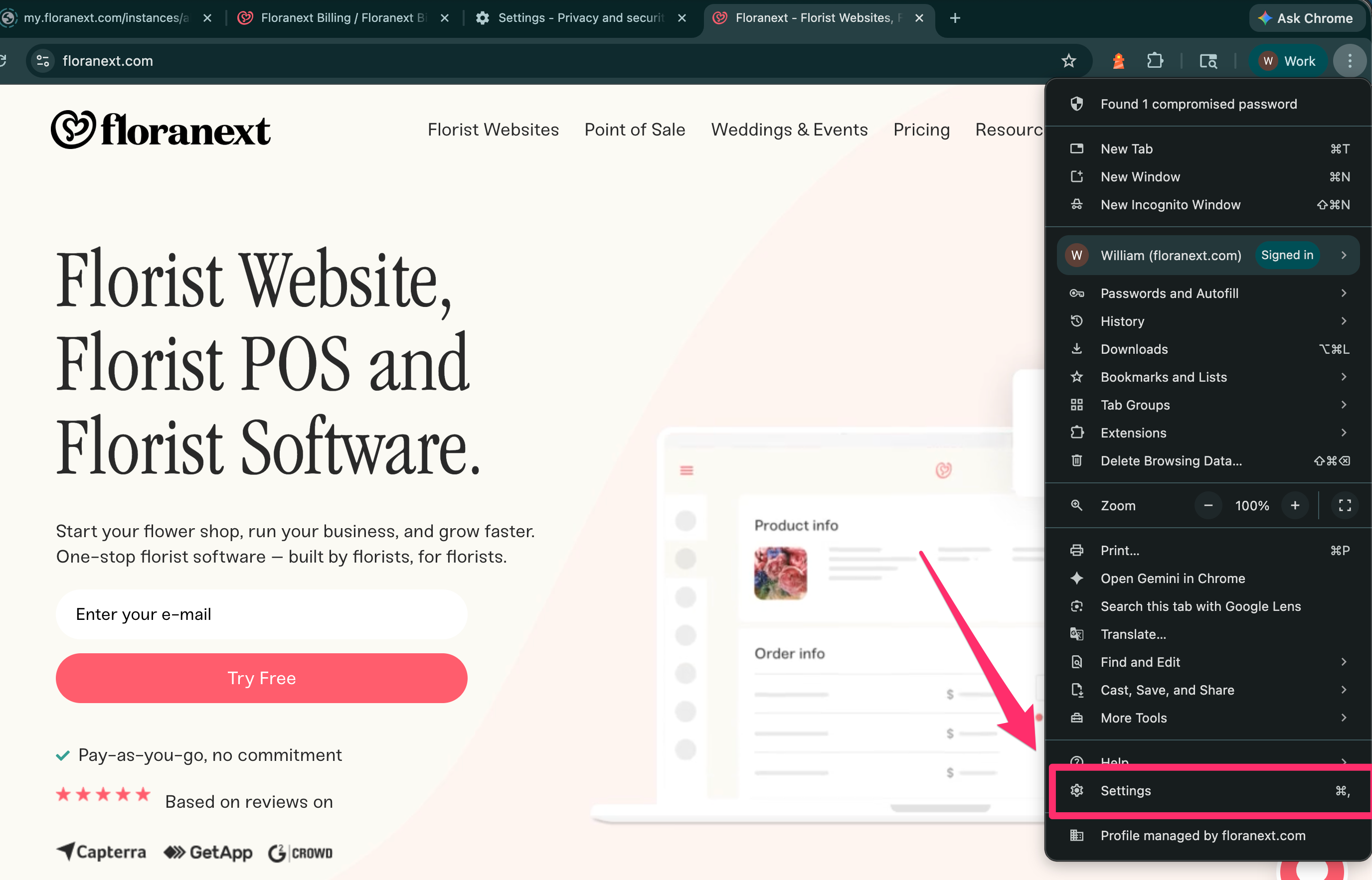
- Open the Chrome menu (three dots in upper right corner)
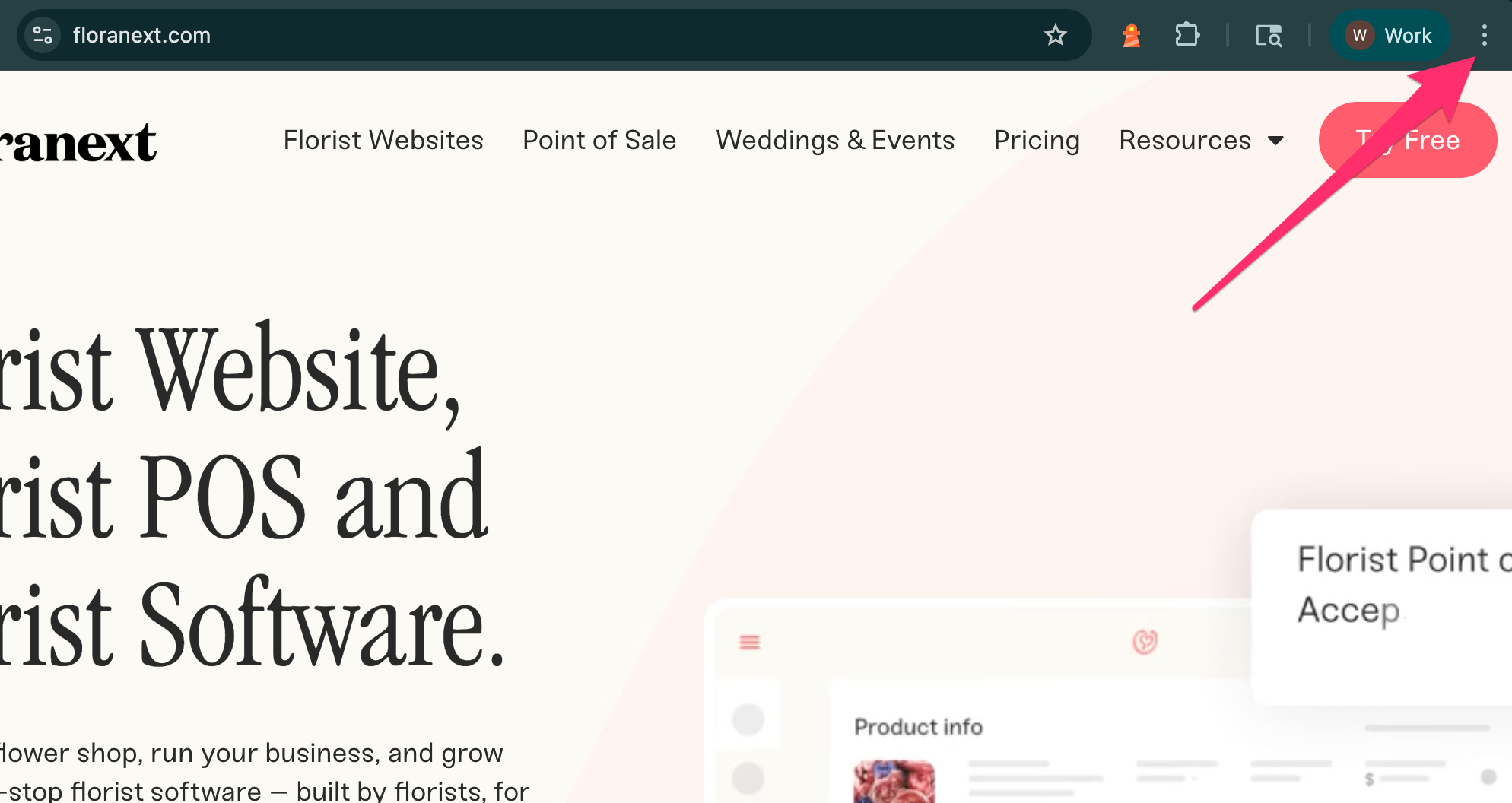
2. Go to "Settings"
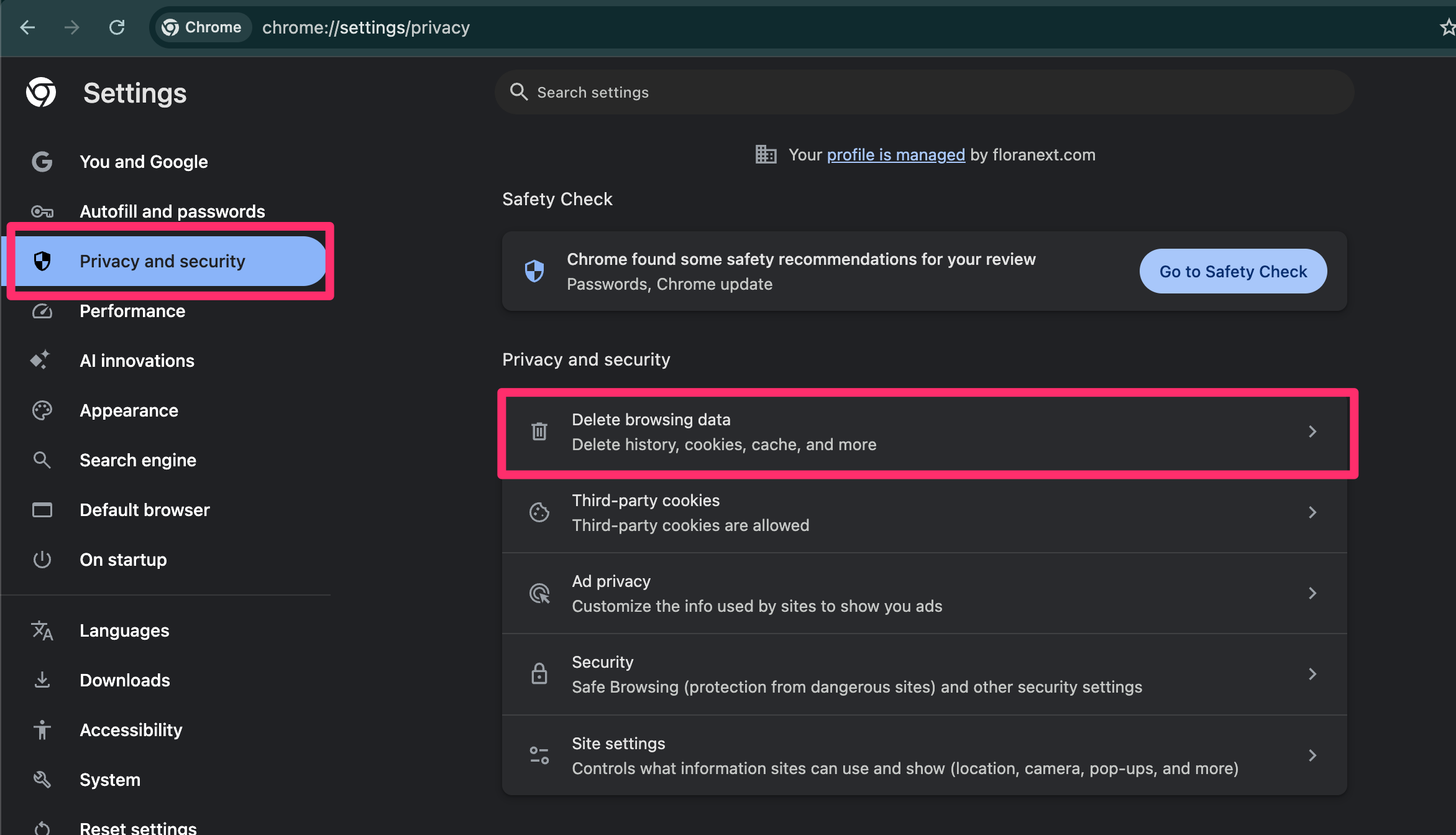
3. Click "Privacy and Security" > "Delete Browsing Data"
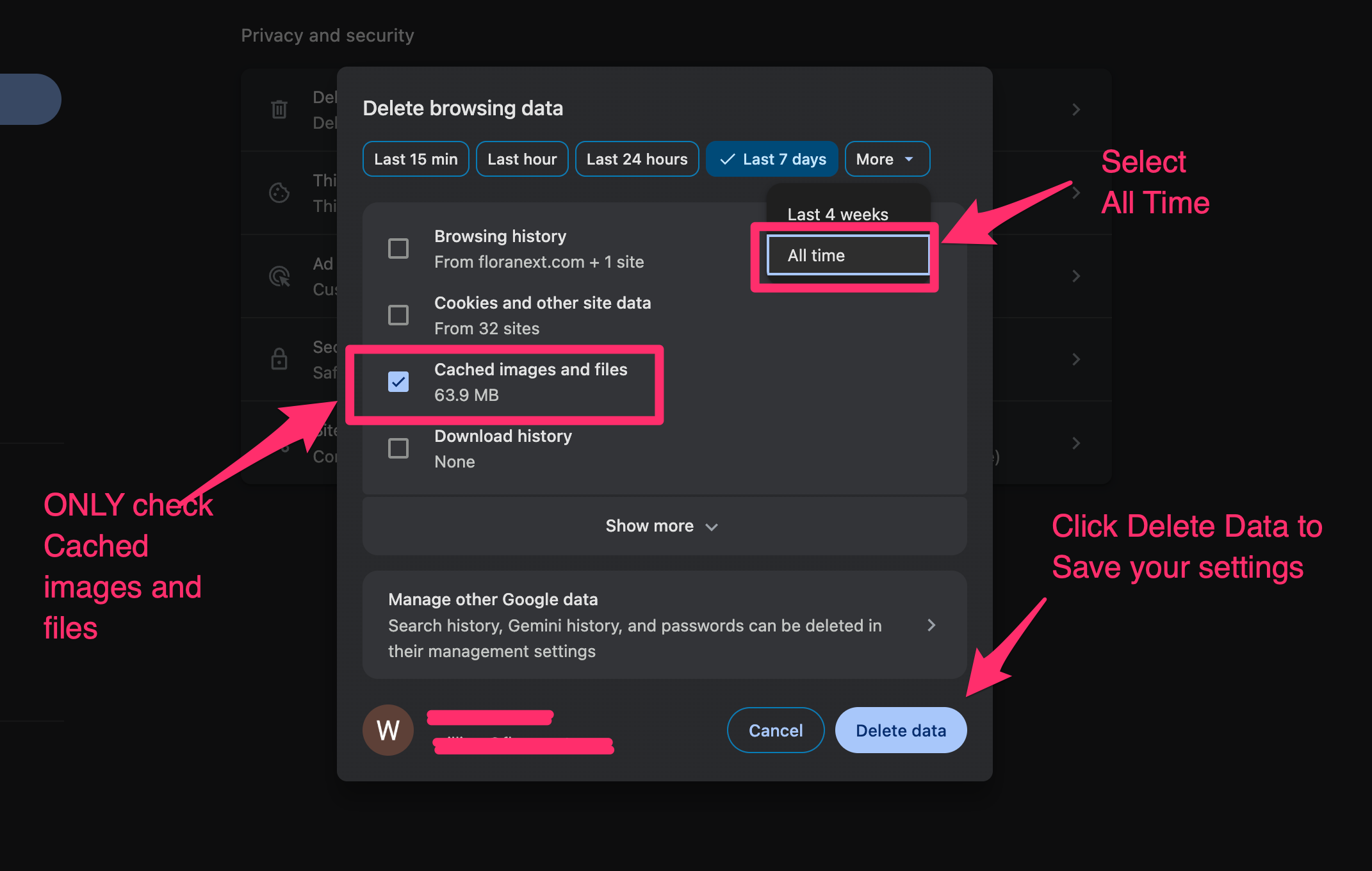
4. Make sure the ONLY box that is checked is "Cached Images and Files," (Note: If you check more boxes than "Cached images and files," you could lose useful browsing data like history, saved passwords, and more! Only "Cached images and files" should be checked!)
Set the time range to "All time" from the drop down
Then click Clear Data
5. Once the cache is cleared, Chrome will take you back to the Settings page. Close this tab, go back to Floranext, and refresh the page
Safari Browser - Clearing Cache
In Safari, you can enable the Develop menu to clear the cache.
From your Safari menu bar click Safari > Preferences

Select the Advanced tab, then select: "Show Develop menu in menu bar"

Now from the menu bar click Develop > Empty Caches

Edge Browser - Clearing Cache
IMPORTANT: We recommend using either Google Chrome or Safari Browsers when accessing the Floranext Point of Sale, Proposals and Admin Dashboard for a best experience
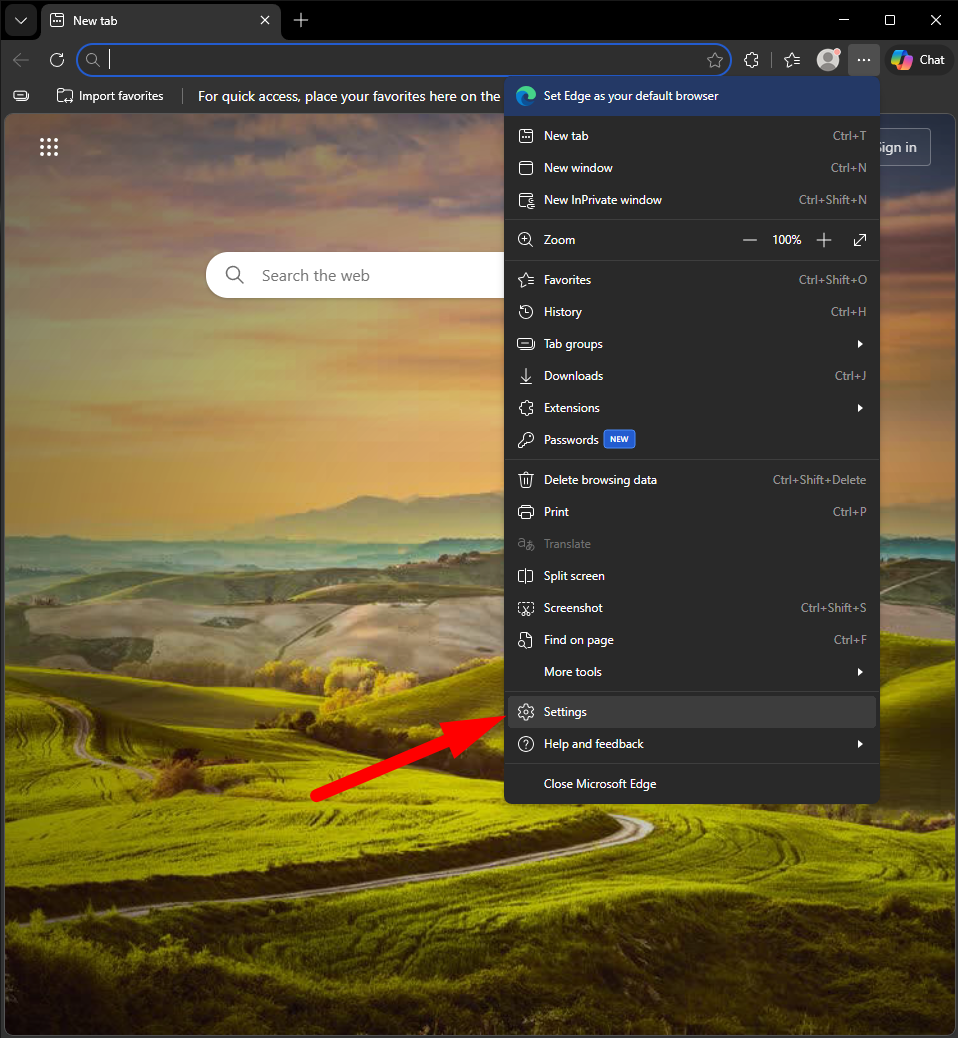
1. Open the Edge menu (three dots in upper right corner)
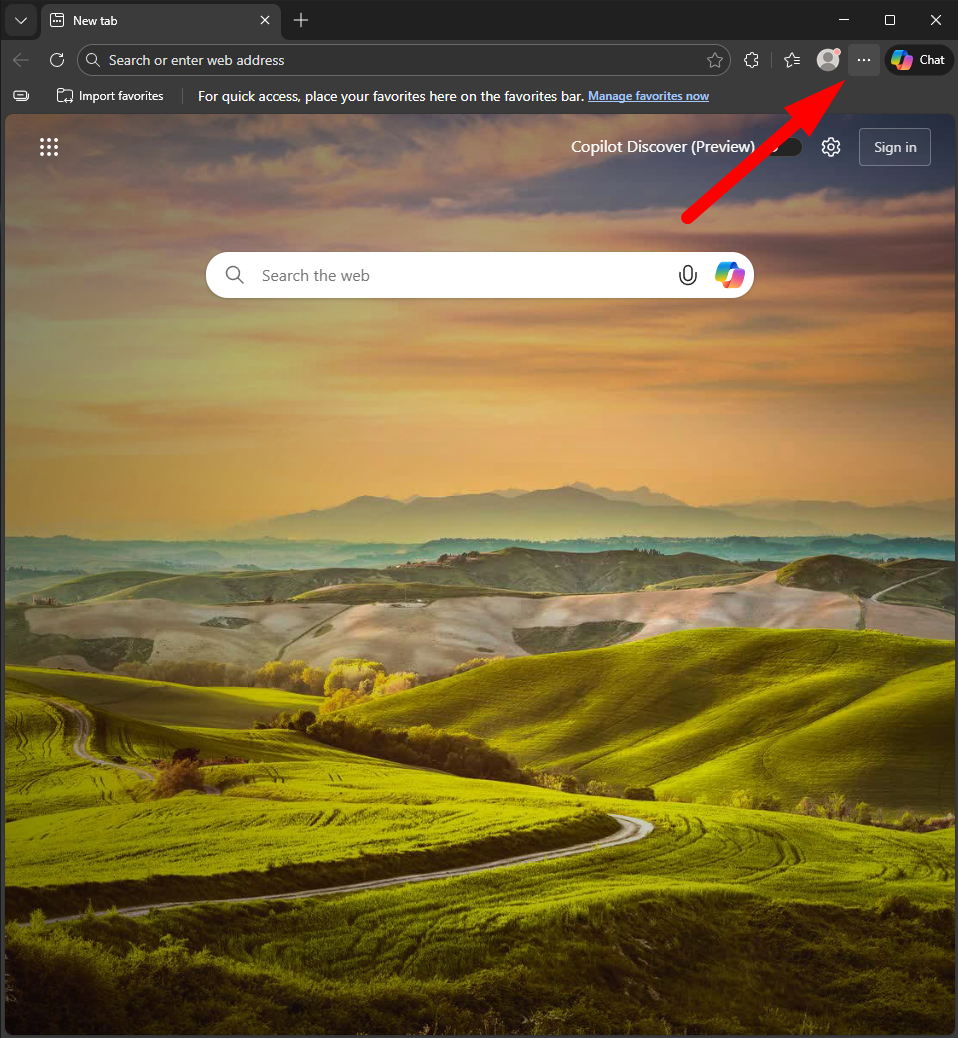
2. Go to "Settings"
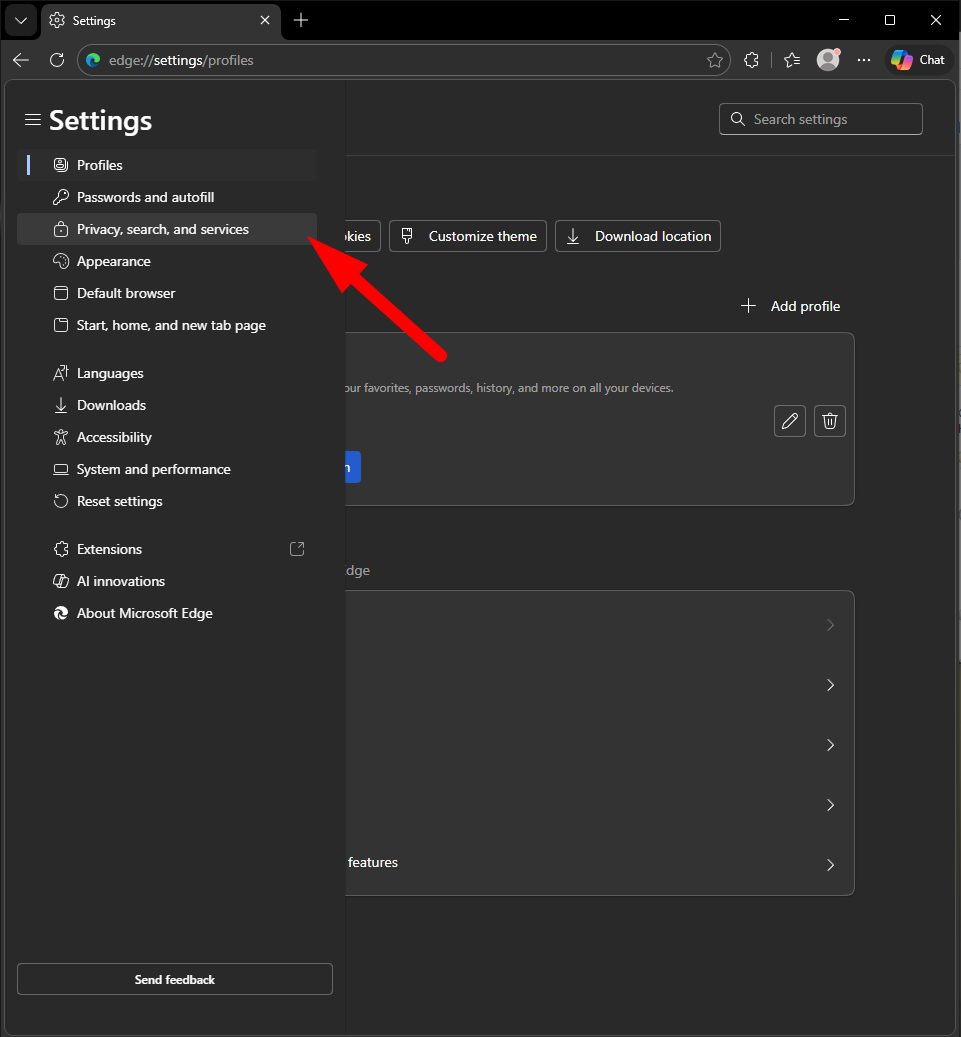
3. Go to "Privacy, search, and services"
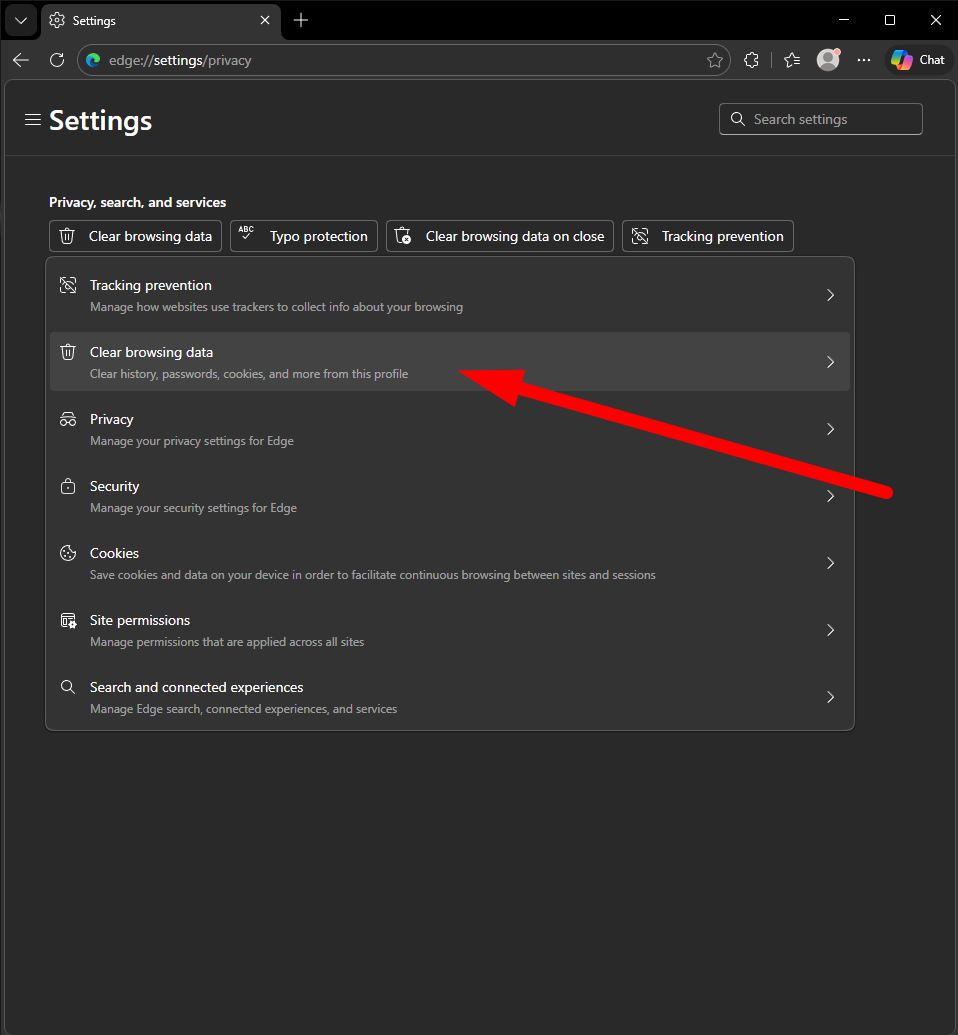
4. Click "Clear browsing data"
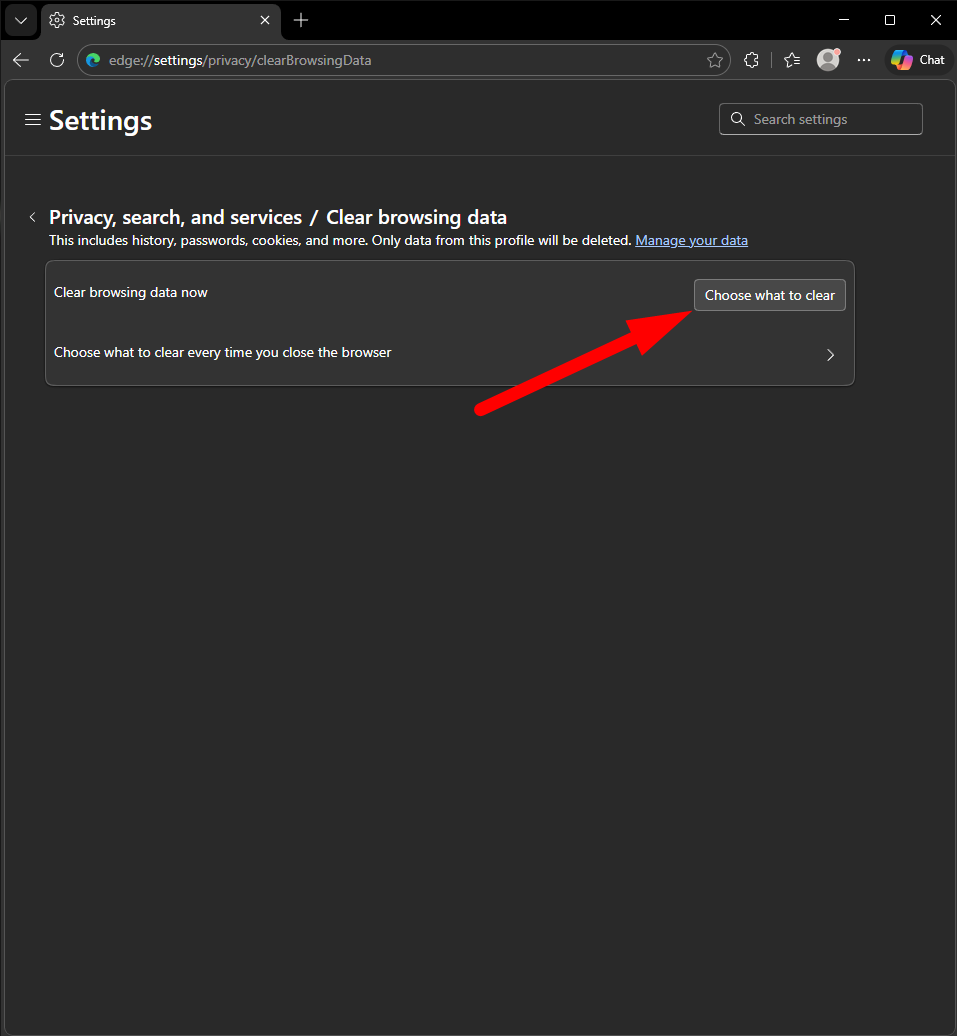
5. Click "Choose what to clear"
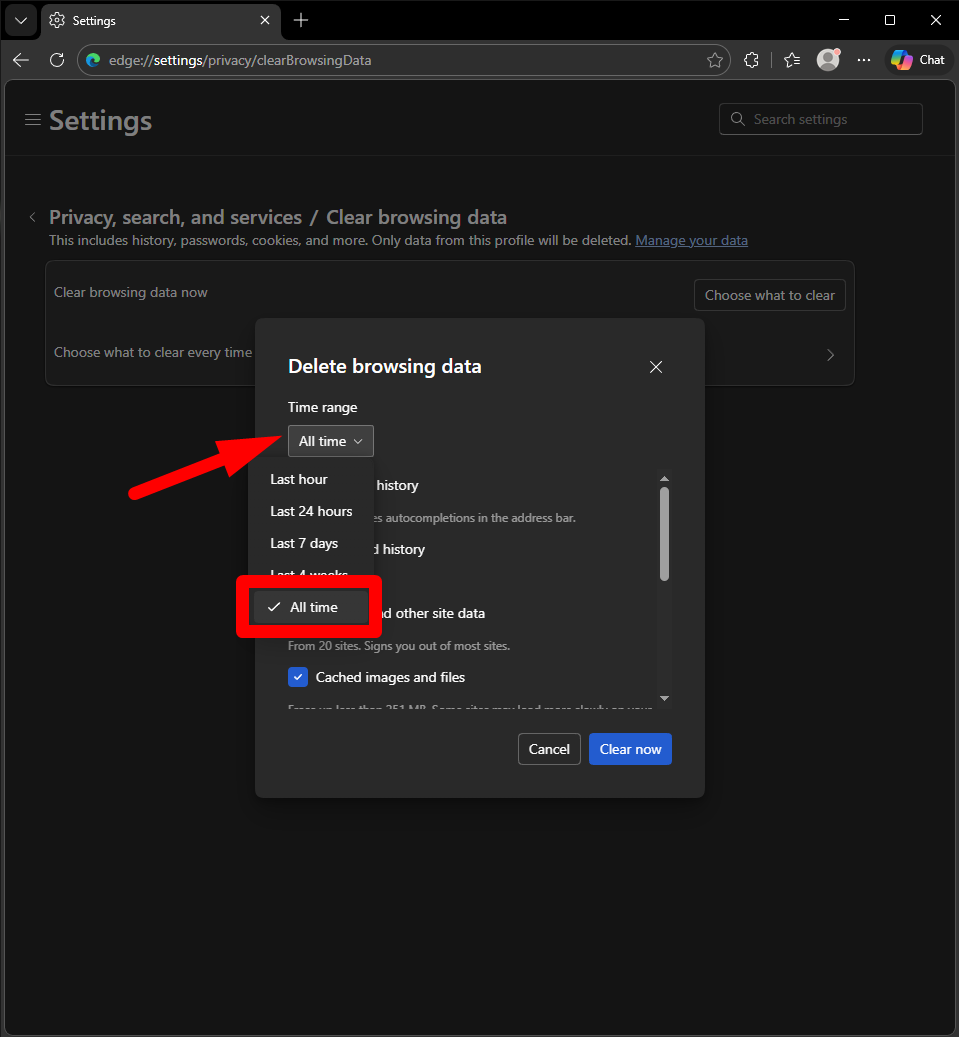
5. Under "Time range" select "All time"
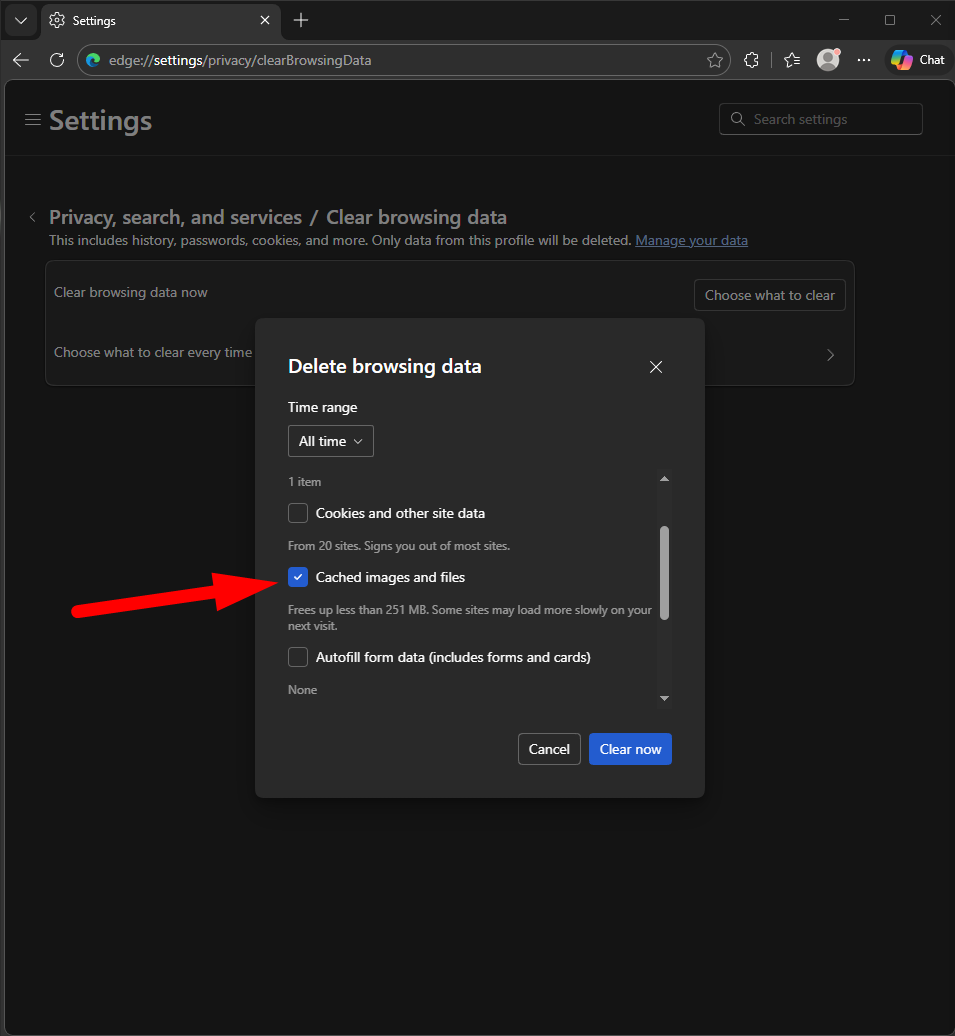
Then make sure that only "Cached images and files" is selected to avoid losing any login data from other cached data.
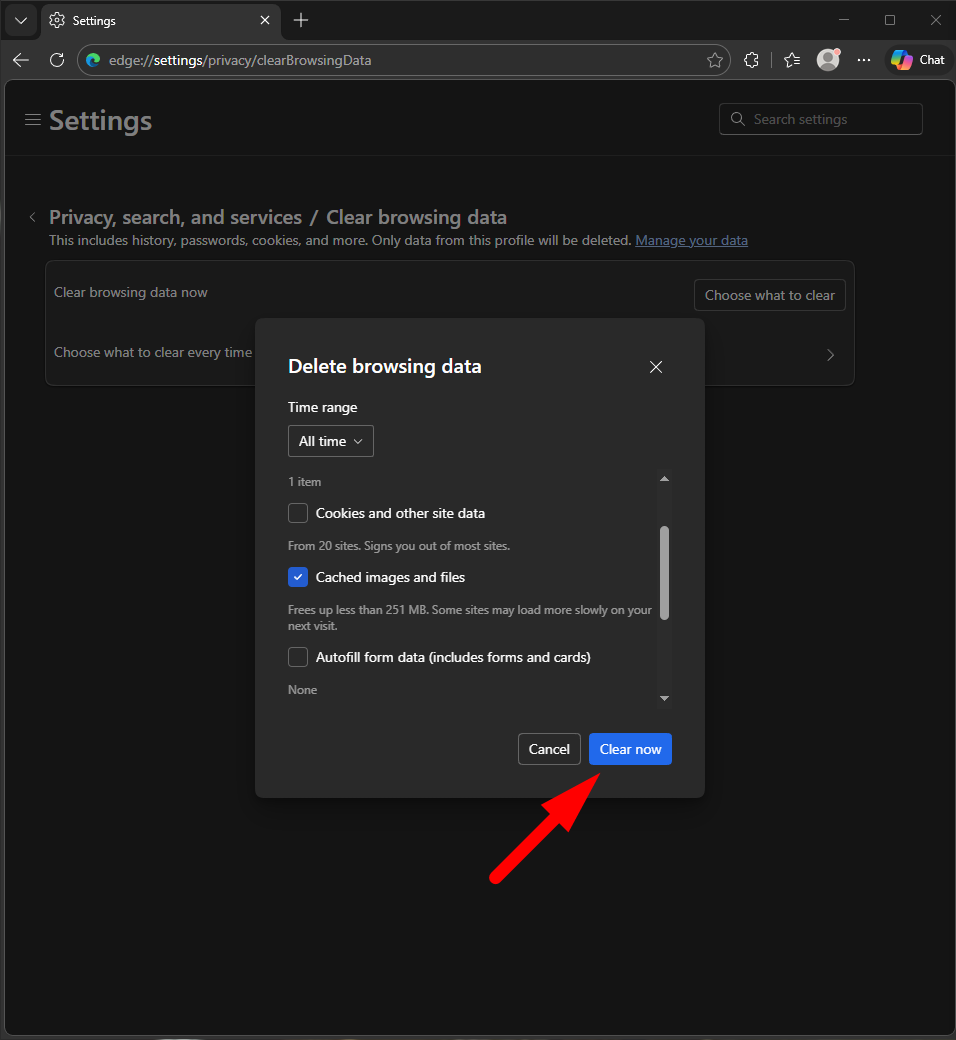
And hit Clear Now